
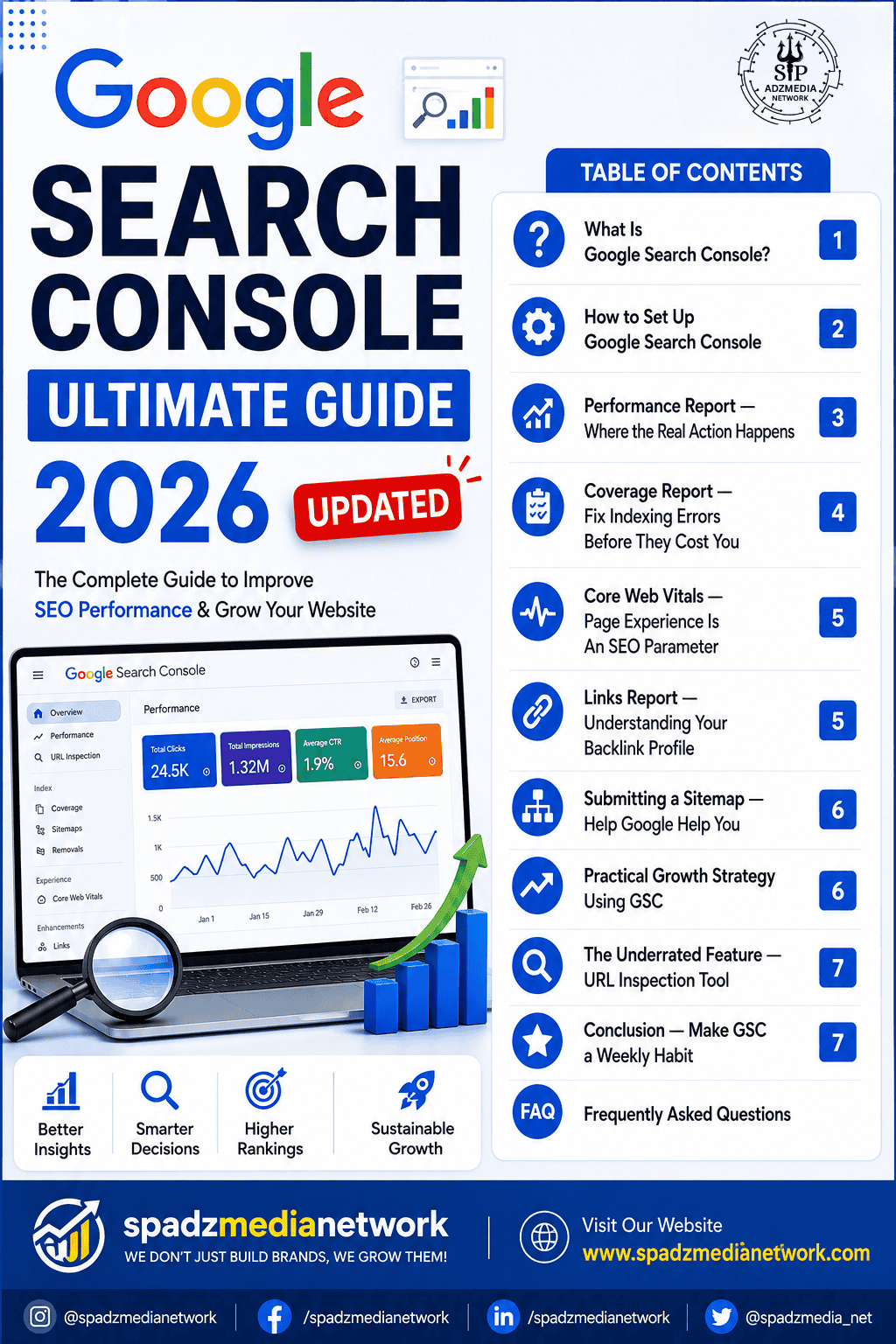
Learn how to use Google Search Console Setup in 2026 to improve SEO, fix indexing issues, submit sitemaps, monitor rankings, optimize Core Web Vitals, and grow organic traffic faster. Picture a tool that is free, developed by Google, with all the information needed about your site – which pages appear in Google, what keywords you’re ranking for, which pages load slowly or how they may be negatively affecting your SEO. That tool is Google Search Console (GSC). If you do not currently use GSC in detail, you could miss out on a large portion of your website’s growth.
In this guide, we are going to go deep inside GSC — not just listing features, but showing you practically how to use each section, what to look for, and how to take real action to improve your website’s performance in search.
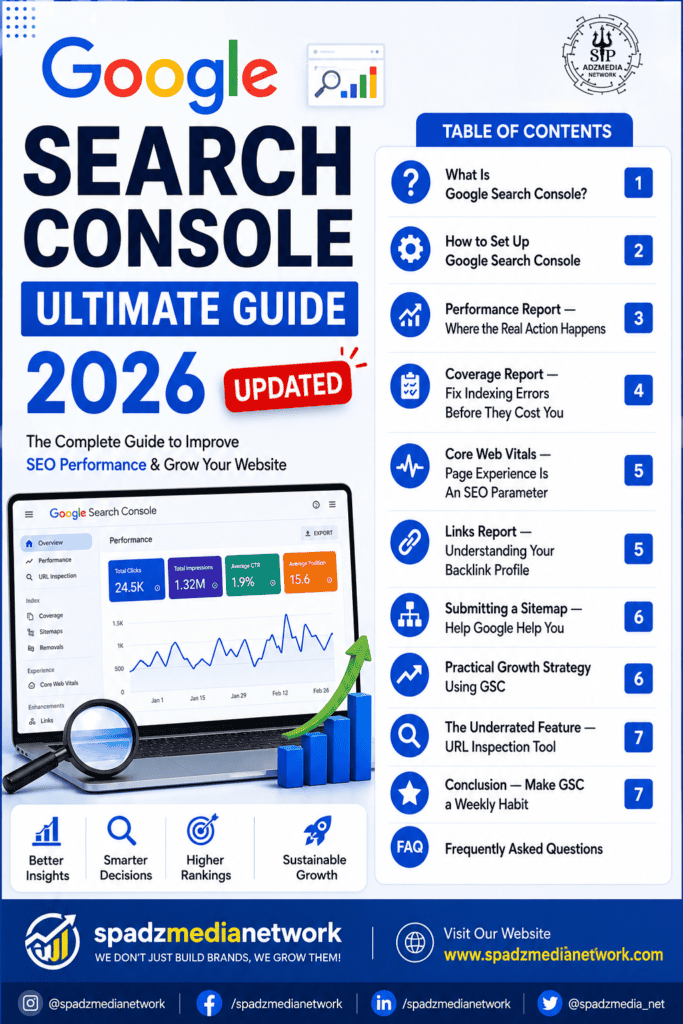
What Is Google Search Console?
Google Search Console is an online tool provided by Google at no charge to website owners, developers, and SEO practitioners to assist them with management of their websites. The tool was initially called Google webmaster tools, but underwent a complete redesign in 2018 with a name change, thus becoming an improved and more intuitive interface than the original version of the tool.
In Brief, GSC provides insight into how Google views your website. Whenever Googlebot crawls and indexes your site, it will send data to GSC.You can then use that data to understand where your site stands in the world of search — and what can you do to make it better?
“Google Search Console is a tool that provides insight into how Google views your website.”
How to Set Up Google Search Console
1.Sign In to Search Console
Go To Search.Google.Com And Sign In To Your Google Account With Your Gmail Address In Order To Access GSC. If You Need A Google Account, You Can Create One For Free.An Account Used To Access Gmail Also Works.
2.Add Your Property
Once you choose “Add Property,” you will need to select one of two property types: either a Domain (which includes all content across all sub-domains) or a URL Prefix (which takes into account just a single, individual URL). Domain property is recommended because it captures all versions of your site — http, https, www, and non-www — in one place.
3.Verify Ownership
Domain verification with Google requires using a verification method to validate that you own a domain name such as an HTML tag, DNS record, Google Tag Manager, Google Analytics, or an HTML file upload. If you have already set up Google Analytics, then using it will be the easiest one-click verification method.
4.Submit Your Sitemap
Once verified, you need to upload your xml sitemap (generally yourdomain.com/sitemap.xml) which will allow Google to see everything that is important about your site to allow for faster crawling and indexing capabilities.
Pro Tip
Once you complete your setup of GSC (Google Search Console), you should see data begin to appear in 2-3 days after that date. Do not be alarmed if the dashboard looks empty on day one — this is completely normal. Give it a few days and the data will start flowing in.
The Main Sections of GSC — Broken Down One by One|
Performance Report
Clicks, impressions, CTR, and average position — all in one place. This is your primary SEO dashboard.
URL Inspection
Instantly check any page’s Google index status, last crawl date, and detected enhancements.
Coverage Report
See which pages are indexed and which are not — and the exact reason why they were excluded.
Core Web Vitals
View your site’s speed and user experience scores for both mobile and desktop separately.
Links Report
Complete data on internal and external backlinks — see which sites are linking to you and how.
Manual Actions
If Google has penalized your site, it will show up here. This section should always read zero issues.
____________________________________________________________________________
Performance Report — Where the Real Action Happens
The Performance report is the single most important section in GSC. This is where you see how your website is actually performing in Google Search results. It tracks four key metrics that tell the complete story of your search visibility.
Metrics mean comparable metrics are best. What to expect metric objectives.
Clicks How many people clicked through to your site from search results A consistent upward trend month over month
Impressions How many times your result was shown in Google search Always higher than clicks — that gap is normal
CTR (Click-Through Rate) the ratio of clicks from an impression to the total number of impressions, A CTR of 3–5% is an average or acceptable level; A CTR above 5% is a strong result.
Average Position The Average Position is the average of the ranking positions of your ads in search results. Your Average Position should always be between 1 and 10 to achieve a successful result.
One of the most powerful things you can do in the Performance report is use date range comparisons. Select the last three months and compare it to the previous three months — you will immediately see whether your traffic is growing or shrinking. Combine this with the Queries tab to identify which keywords are driving your impressions and clicks.
A common tactic mentioned by many SEO professionals is filtering for queries with a high amount of total impressions and a low amount of clicks. This shows the relevance of a web page to Google but indicates that users are somehow dissatisfied with it. Typically, by modifying the title tags and/or Meta descriptions will help improve your clicks through rate as a result of you making changes to your title to be a more appealing or correct title for their respective search engine results.
“High impressions with a low CTR means your content is visible but not compelling. Rewrite your titles and descriptions — that is where the win is hiding.”
____________________________________________________________________________
Coverage Report — Fix Indexing ErrorsBefore They Cost You
TheCoverage report shows you the indexing status of every page Google has discovered on your site. It organizes pages into four categories:Error, Valid with Warning, Valid, and Excluded. Ideally, all your important pages should fall under “Valid.”
Some types of common errors are 404 errors, which state that a page cannot be found because it does not exist anymore (in this instance, if this happens, use 301 redirects to send users on to an equivalent page), crawling errors (the page has been crawled by Google but is not included in index, which is usually due to duplicate or thin content), and discovery errors (Google knows about this page but has not crawled it yet — usually due to a problem with either internal links to that page or the budget for crawling internally).
Quick Fix Strategy
Once you’ve resolved a coverage problem, it’s essential to follow through with that effort by telling Google you’ve corrected the issue. The quickest method of notifying Google after fixing an issue is by coming back into GSC and using the URL Inspection Tool. From there, search for your fixed item and choose the Request Indexing option from your inspection window.This action will put additional pressure on Google to crawl and recrawl that URL and, as a result, it is very likely that your URL can be re-indexed by Google much faster than normal (up to several days or weeks sooner than expected).
____________________________________________________________________________
Core Web Vitals — Page Experience Is An SEO Parameter
It has been determined that as of 2021, Google has included page experience as a ranking criterion. Page experience is assessed primarily by the Core Web Vitals. In the CWV report in GSC, three metrics are taken into consideration: LCP (largest contentful paint), INP (interaction to next paint) and CLS (cumulative layout shift).
The report contains separate breakdowns of results by mobile and desktop; which is beneficial since mobile performance is generally slower than desktop. Identify all “Poor” URLs, prioritize their repair, and use PageSpeed Insights to identify specific recommendations for each page. Simply moving “Poor” pages to a “Needs Improvement” status will generate measurable ranking growth.
____________________________________________________________________________
Links Report — Understanding Your Backlink Profile
The Links report contains two critical sections: External Links (backlinks coming to your site from other websites) and Internal Links (how pages within your own site link to each other). Both matter enormously for SEO, and most website owners ignore the internal links data completely.
The External Links section of your account shows how many other websites/directories are linking to your site and the specific web page(s) receiving the most backlinks from these sites. If there is a domain that appears in this list that is suspicious or spammy, you can use Google’s Disavow Tool to notify Google that these links should not be considered when determining your website’s authority. In the Internal Links section, you should take note of which pages in your account have the fewest internal links or no internal links at all. These types of pages are referred to as “orphan pages” and are very hard for Google to find because they are not linked from any page on your website to another. This means they do not rank well in search engines due to lack of links.
____________________________________________________________________________
Submitting a Sitemap — Help Google Help You
A sitemap is an XML file that lists all the important pages on your website. Think of it as a table of contents you hand directly to Google. Without it, Google has to discover your pages by following links — which works, but is slower and less reliable, especially for newer or larger sites.
To begin utilizing the New Google Search Console, simply select “Sitemaps” from the left-hand side menu, inputting the URL of your Site Map file (e.g., http://www.yoursitename.com/sitemap.xml) and hit “Submit.” If you’re constructing your own site on WordPress, using either Yoast SEO or Rank Math, you will have already created a sitemap via these plugins. If you are trying to create your own sitemap via any other CMS, then there are numerous free online tools available that can generate a site map for you. You may also want to have your CMS set up to automatically update your site when new content is created.
____________________________________________________________________________
Practical Growth Strategy Using GSC
GSC is not just a reporting tool — it is a growth engine if you know how to use it strategically. The first habit to develop is checking your Performance report every week.Use the following guidelines to conduct your analysis of webpages that have seen declines in average positions compared to previous time periods. Be particularly focused on pages that are currently being shown at an average position of 6-15 — these are often considered to be prime candidates for improved targeting through content enhancement or improved internal linking arrangement that can help them move up into the top five results set.
Finding high-performing keywords and creating content clusters around them is the second strategy for generating a high volume of quality web traffic. If you have found a particular keyword that sends you a lot of traffic, chances are that there are a lot of related subtopics and questions associated with that keyword.
. Create supporting articles for each of those and link them back to your main page. This signals topical authority to Google and creates a compounding effect on your rankings over time.
Next, conduct a monthly Coverage audit. New errors can be introduced unexpectedly through site updates, plugin modifications, or mistakenly ordering robots.txt files. Early detection of these types of errors will avoid the potential for loss of visibility and traffic for weeks and months at a time.
Growth Hack
Connect Google Search Console (GSC) to your Google Analytics 4 Property. By doing this you will get insight into which pages within your website are receiving the most organic search traffic and also what those users do once they reach your site (i.e. bounce rates, time on page, conversion activities). When you combine the two sets of data you get a complete view of how the users interact with your site and as a result you are able to make more informed decisions about the content that you publish.
____________________________________________________________________________
The Underrated Feature — URL Inspection Tool
URL Inspection has been widely used as a tool in GSC. After creating a new webpage, you must copy the new webpage URL and paste it into the Google Search Console search box and request indexing of this new webpage. Following this strategy will help instruct Google to crawl the specified URL sooner than it would normally do; instead of having to wait 2 to 3 weeks (which is the normal amount of time Google takes), when you implement this strategy, you will find that your new webpage gets indexed by Google in approximately 1 to 3 days after it is published.
But URL Inspection does more than just request indexing. The tool will reveal all the information that is visible to Google when it renders the page including if your canonical tag is set up correctly, if structured data (schema markup) has been found and is valid, if the page is mobile responsive and the date when the page was most recently crawled. Therefore, it would provide an overall health check for any given page on demand at anytime.
Conclusion — Make GSC a Weekly Habit
Google Search Console is not just another analytics dashboard to set up and forget. It is the most direct line of communication between your website and Google’s search engine. Websites that actively monitor and act on GSC data consistently outperform those that only focus on publishing content without checking the technical foundation.
The process is simple. The insights you gain from this process will help you improve your business forever. To take your first steps with Google Search Console (GSC), open it up today and see what pages are getting the most traffic. Choose one page to correct its Search Console coverage error; then find a page with low click-through rates and improve the title; finally, submit an additional URL so that Google can add it to their index again. By taking small, continual actions within GSC each month, you will eventually achieve substantial increases in organic search results.
Frequently Asked Questions
15 answers to the most common Google Search Console questions
Is There a cost to access Google Search Console (GSC)?
Google Search Console can be utilized at no charge. No premium tiers, hidden fees or limits on usage exist. Google provides this tool entirely free of charge to all website owners. All you need is a Google account to get started.
Comparison of GSC and GA? Do I need both?
Currently, you can compare your metrics from these three systems, but they will all track different metrics. In addition, the Google Analytics system will also track how users interact with your website. Actions include page views, session creation, last known source (bounce rate), converted to sales, and event flow across the site. GSC tracks how your site performs in search results — keywords, impressions, rankings, and indexing health. Used together, they give you the complete picture of your website’s performance. Yes, you need both.
Is submitting a sitemap mandatory? What happens if I skip it?
Although it’s not required, Google finds pages by crawling hyperlinks on the web. Having your site submitted via a sitemap will help speed up the process of crawling and indexing your website, particularly for new sites or for sites with a high volume of pages. If you own a new website or have pages that aren’t linked to each other through your site’s navigation, skipping the submission of your site through a sitemap may leave some of your most important pages out of Google’s index for an extended period (weeks or months).
What are the different ways to verify a site in GSC, and which is easiest?
The five ways to verify your website with Google Analytics are: Upload an HTML file; Use an HTML Meta Tag; Use Google Analytics; Use Google Tag Manager; or Add DNS TXT Record. If you already have Google Analytics set up on your site, that is by far the easiest option — it verifies instantly with a single click. WordPress users can also verify through plugins like Yoast SEO or Rank Math without touching any code.
What is preventing my page from being indexed?
There are a number of different reasons that indexing can fail to occur, including page being blocked from being indexed through robot.txt, a no index meta tag on the page, a thin or duplicate content site, difficulty crawling through your site, slow website response times, etc. To see which of your site’s pages are not indexed and what caused them to not be indexed, you can review the Coverage report in GSC. Use URL Inspection for a deeper per-page diagnosis. After you have determined the issue and repaired it, click on “Request index” to have Google review it as soon as possible.
My average position is 11. Pros or cons – what should I do?
Position 11 means you are sitting at the very top of Google’s second page — the first result users would see if they clicked “Next.” According to research, positions 1 – 10 (1st page) receive more than 90% of all click-throughs, while pages 2 and lower receive less than 5% of all clicks. There is an opportunity zone at position 11; with the right changes to your content, internal links, etc., you will have a good chance of reaching page 1 if you make a dedicated effort.
How current is the data in GSC? Does it update in real time?
GSC data is not real time. There is typically a 2–3 day delay in the Performance report. In GSC, you can get 16 months of historical data. If you’re looking for more ‘real-time’ traffic info, GA4 can give you what you need faster and more accurately than GSC. If you’re looking for search-specific info (such as keyword rankings and impressions), GSC is the most accurate source available.
Can multiple people access the same GSC property?
You’re able to create multiple users under GSC through three different permissions: Owner- has the full permissions, Full User- this user will have access to all of the data and can complete any action except for creating or deleting any GSC users, there is only one owner of GSC. delete user accounts and property; Restricted User- view only). As a result, you can easily share access with your developers, seo consultants or clients without giving them complete access to your account.
My Core Web Vitals are failing. Will my rankings drop immediately?
Core Web Vitals (CWVs) are a recognized ranking indicator by Google, but just one amongst many other factors that impact search results. Authority of backlinks, quality of content, and relevance of content are still ranked higher than CWVs alone. If two webpages are similar in terms of quality & authority, however, then Google will favor the page that performs better on CWVs. Thus, moving from a “Poor” to “Needs Improvement” within the CWV score will yield quantifiable increases in search rankings and therefore there is a benefit in focusing on optimizing your pages for CWVs as part of your SEO strategy
How Frequently I Check Google Search Console?
To monitor drops quickly, you must review at least one time each week. Check monthly for Core Web Vitals as well as Coverage reports. You should check Google Search Console (GSC) immediately after implementing any substantial changes to your website (i.e., redesigns/URL changes/etc) and whenever a major Google algorithm update is announced. Major algorithm updates can cause significant changes to traffic data.
Spam backlinks will be shown on the Links report, so what steps can be taken?
Do not panic. A small number of spammy backlinks on an otherwise healthy site rarely causes significant harm. Google has become quite good at ignoring low-quality links automatically. However, if you have a large volume of clearly manipulative links, you can use Google’s Disavow Tool — create a text file listing the domains you wantGoogle to ignore, then upload it through GSC. It is best to only use this tool as needed,when truly appropriate. Misuse can lead to unintended results that could put you further behind in terms of visibility.
Where can I export GSC Data? What does GSC Data Export mean?
You can click the Export icon located in the top right of the performance report. Once you click this icon, you will see options for exporting your performance report data, including exporting to a CSV file and an existing Google Sheets document A lot of SEO professionals use monthly comparisons to create reports in Google Sheets that use pivot tables for working with data. This allows them to easily see trends over time. You can also connect GSC to Looker Studio (also known as Google Data Studio) in order to create live, visual dashboards. These visual dashboards will update automatically and can be shared out to clients/stakeholders.
Is Google Search Console useful for local SEO as well?
Absolutely. In the Performance report, you can filter your queries to see which location-specific keywords are generating impressions and clicks — for example, “best dentist in Chicago.” This data directly informs your local SEO content strategy. Despite being different systems altogether, GSC Adjunct to Google My Business offers you the most comprehensive suite of tools to understand and analyze your Local Search presence and visibility.
What does a Manual Action in GSC mean, and how do I remove it?
Manual Action refers to an action by a human reviewer from Google who has found out that there is a violation of the webmaster’s guidelines and placed your website on hold until the problem is fixed. There could be a violation of the Google Webmaster Guidelines, which comes from some type of keyword stuffing, cloaking, unnatural linking, or publishing thin/machine-generated content. You must determine what Google shows you specifically as a violation in GSC, fix that issue completely before you can request a review of the issue in GSC.
I just launched a new website. How long before I see data in GSC?
For brand new websites, even after GSC verification, it takes time before meaningful data appears. The fact is that Google must first crawl your website and subsequently index your pages before anyone can even find them.It is realistic to assume that you will not be able to collect any data for 4-8 weeks post-launch. Till then, focus on submitting your site map and incorporating internal links, in addition to developing quality content consistently.
Also Read :-Best SEO Services in Delhi by SP AdzMedia Network to Skyrocket Your Website’s Ranking
Best Digital Marketing Agencies in Delhi: SP AdzMedia Network Leads the WayBest Digital Marketing Agency In Delhi-SP AdzMedia NetworkTrends In Digital MarketingTop Start Up Companies in Delhi Backlink Creation Services in Delhi Explore our SEO services in Rohini Backlink Creation Services in Delhi AI SEO Optimization E-Commerce SEO 2025: The Ultimate Guide by SP AdzMedia Network SEO vs AEO vs GEO Latest Google Ads Strategy for 2026 Best Startup Ideas for Business in 2026 — The Ultimate Guide How to Start a Print-on-Demand T-Shirt Business in 2026 200+ Travel Blog Comment Sites 2026 Local SEO Services by SP AdzMedia Network Top AI Startup Ideas in India 2026 Local SEO Services by SP AdzMedia Network YouTube SEO in 2026 Ranking Your Website Without Backlinks in 2026 SEO vs PPC vs SMM Top 100+ Meta Ads Interview Questions 2026 Google Trends for Keyword Research Google Search Console
Our Social Media Handles: Instagram Linkedin X Pinterest Blogger YouTube
Leave a Reply